ShuMag
日本語

Ready to retire
the fridge magnet board?

“Who’s driving where this week?”
A weekly board app your family shares.

Your family’s board

Start for free Download on the App Store

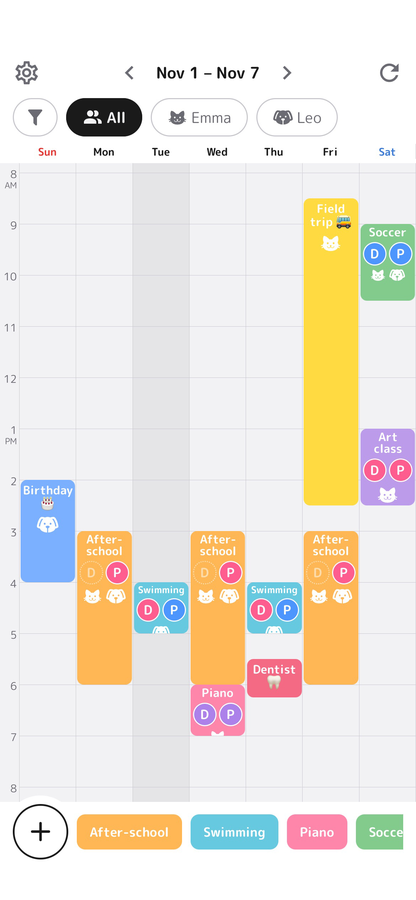
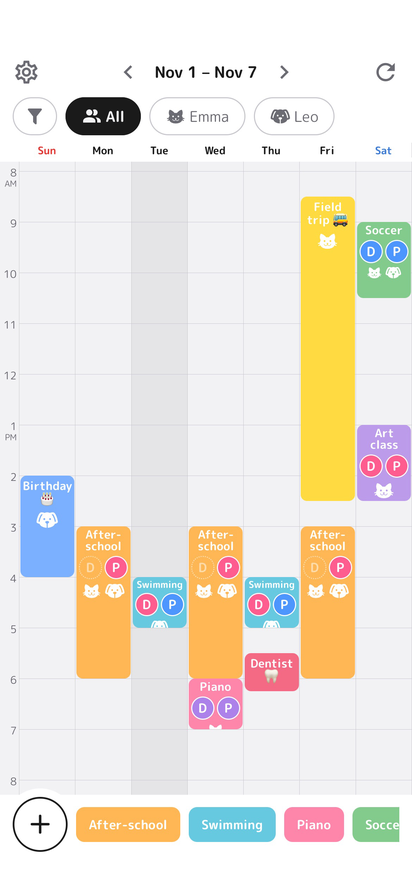
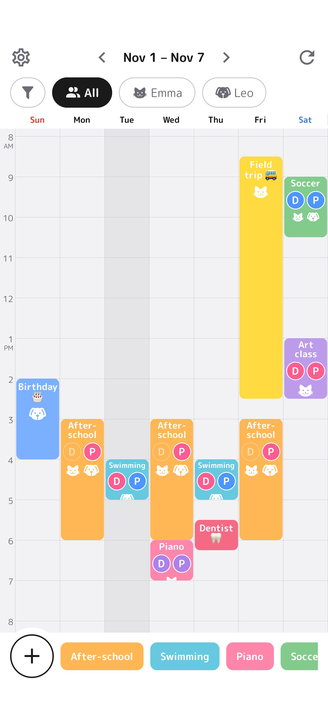
ShuMag weekly board screen

Drop-off and pick-up plans
scatter across the family.

After-school care, day camp, swim lessons, tutoring. The more kids and places you have, the harder it gets to answer “Who’s driving where this week?”

The details live on fridge magnets, a paper calendar, and family texts. In the end, you keep piecing it all together in your head.

ShuMag puts that “who goes where” on one board the whole family can see.

ABOUT

ShuMag magnets
carry “data.”

ShuMag is an app where you place magnets on a Sunday-to-Saturday weekly board. But they aren’t just colored blocks.

Each magnet comes with the place, the kids who go, how long it takes, the drivers, and the reminders already “inside.” Just drop it on the board, and the whole regular schedule comes with it.

ABC Kids Club
D P
What’s already inside each magnet
Where they go
Kids who go
Duration
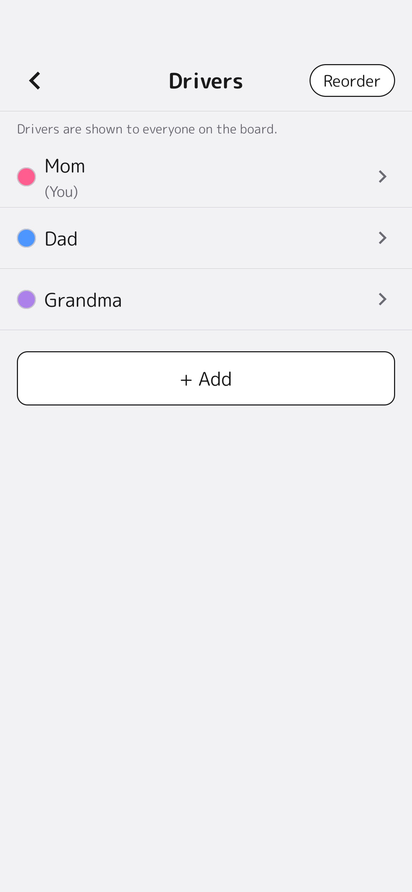
Drivers
Reminders
Magnet color = tells events apart
D/P circles = color shows the driver
White icon = pick one for each kid

The day and start time are always up to you.
Length and drivers come with the magnet.
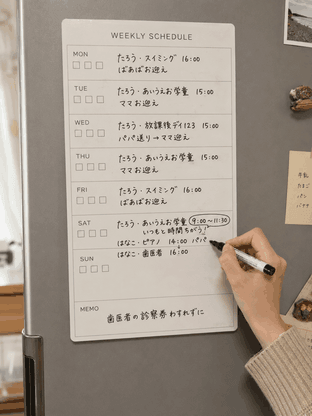
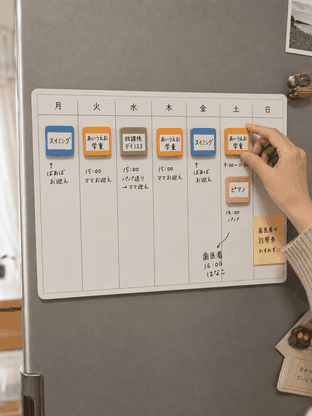
Something fridge magnets
A weekly schedule handwritten on a fridge whiteboard A weekly schedule made with magnets on a fridge whiteboard
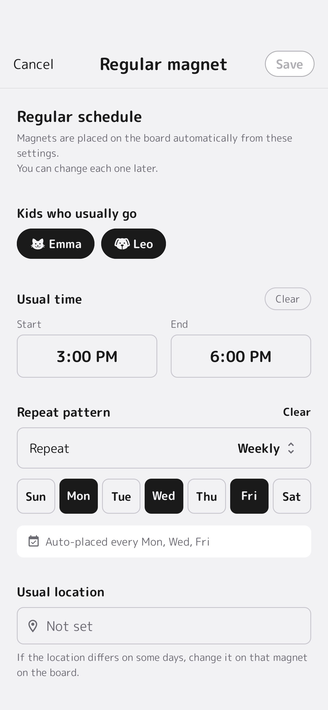
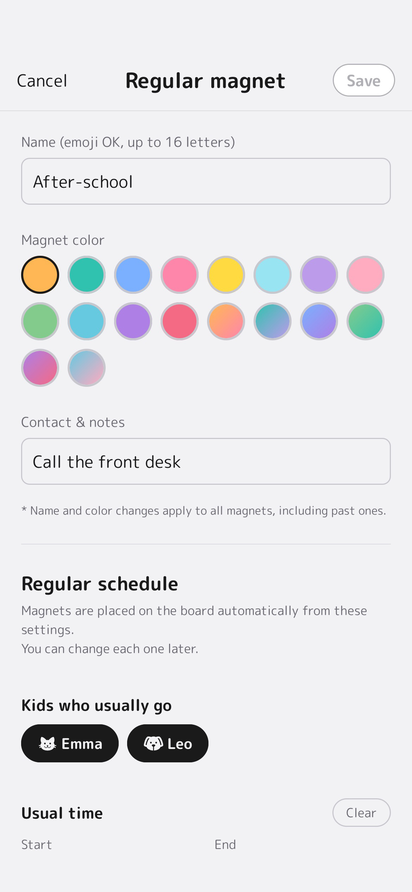
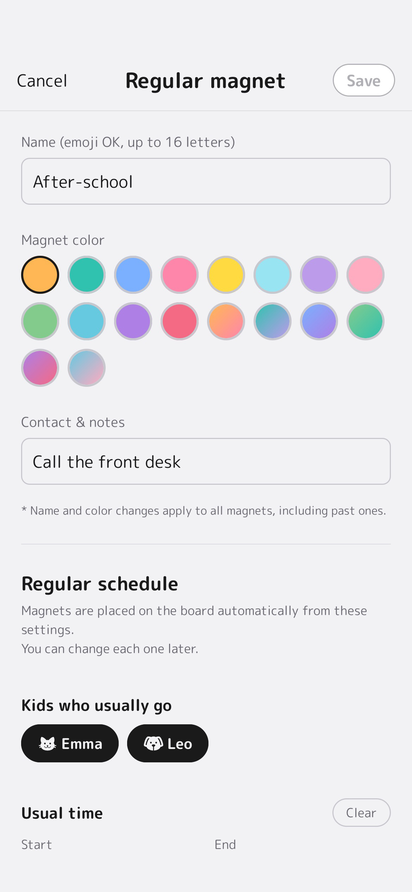
The "Regular schedule" settings of a Regular magnet
CHARACTER

Hi, I’m Magchan

Remembering is Magchan’s job

Magchan is a ShuMag magnet.

Remembering your family’s schedule is Magchan’s job. A little nosy, Magchan keeps an eye on everyone’s plans, always looking around. When it’s time, Magchan comes to tell you with a notification.

When you open the app, Magchan says a little something once a day.

FEATURES

What ShuMag can do

Place it, and
the usual is set
Each “Regular magnet” already has the kids, time, place, drivers, and reminders.
Regular plans
line up for you
Set a weekly repeat, and they’re placed for you each new week.
More places,
still one board
After-school care, lessons, tutoring. However many you add, you can see this week’s rides at a glance.
Share live
with your family
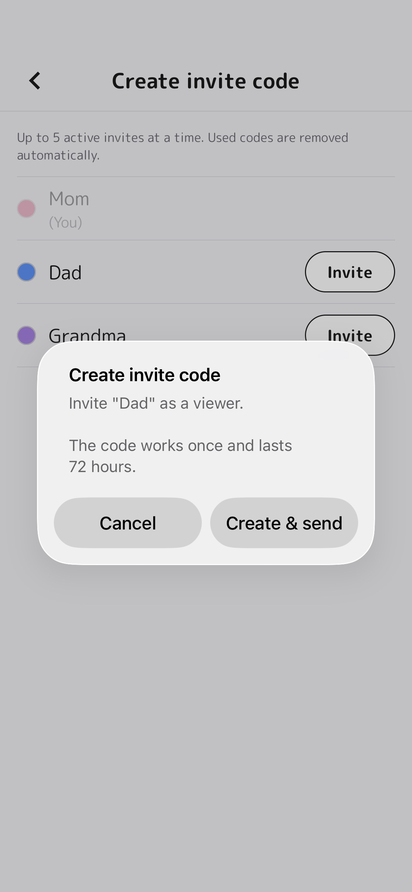
Just send an invite code. Even far apart, everyone can see the same board.
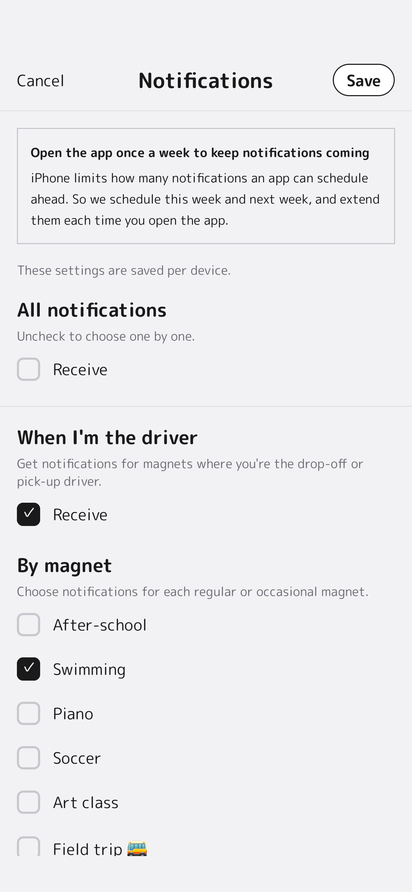
Reminders for each event
Get a heads-up before it starts and before it ends, with the location and notes.
Edit even offline
Works on the train, too. It syncs on its own when you’re back online.
ShuMag weekly board screen
Notification settings screen
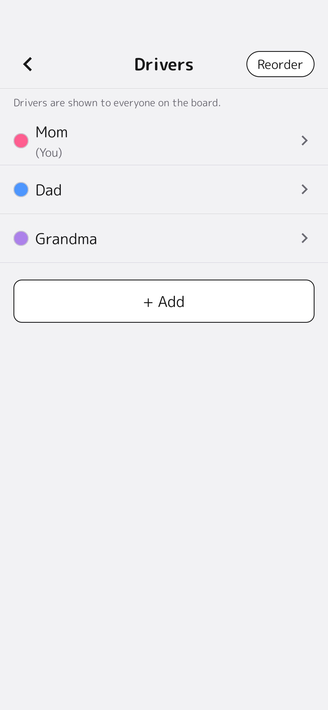
Driver settings screen
WIDGET

Rides on your Home Screen
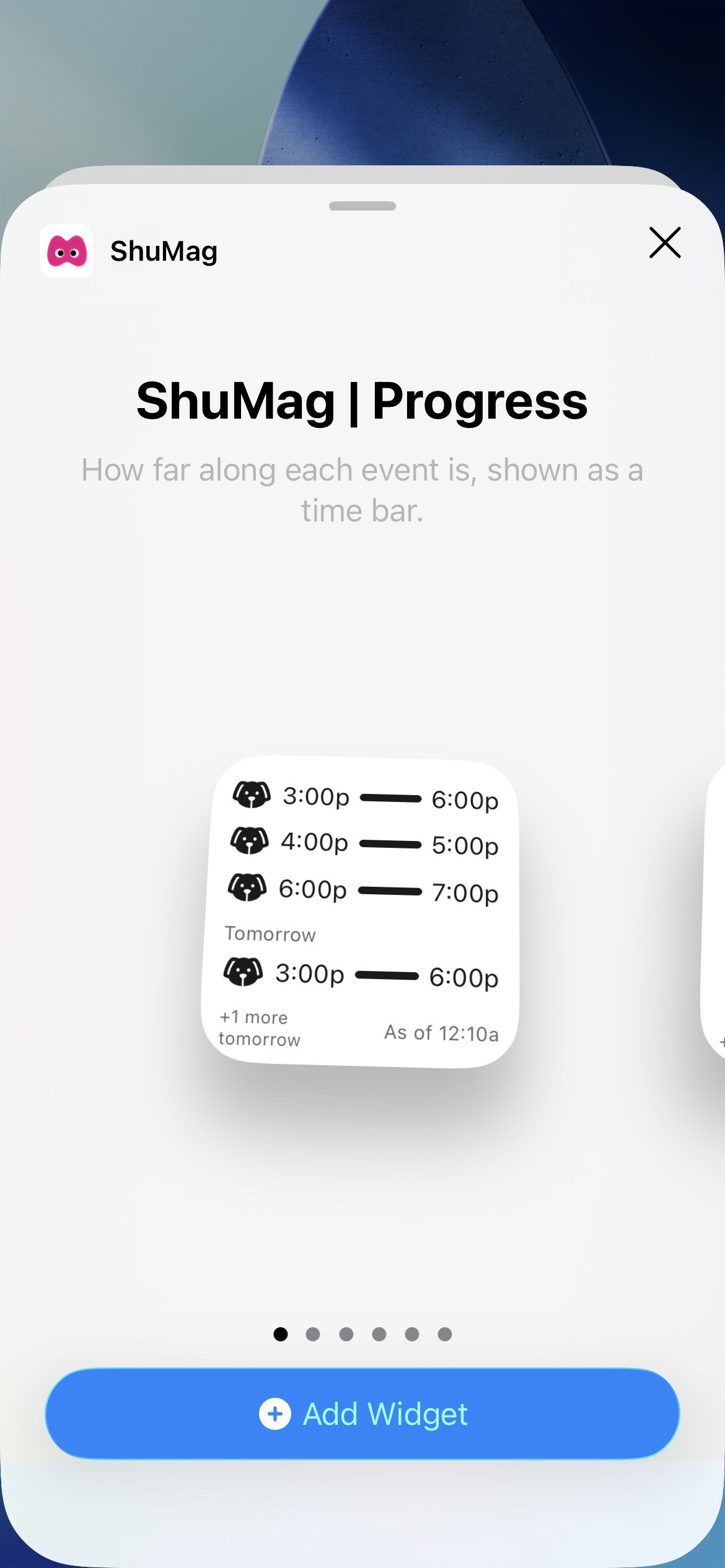
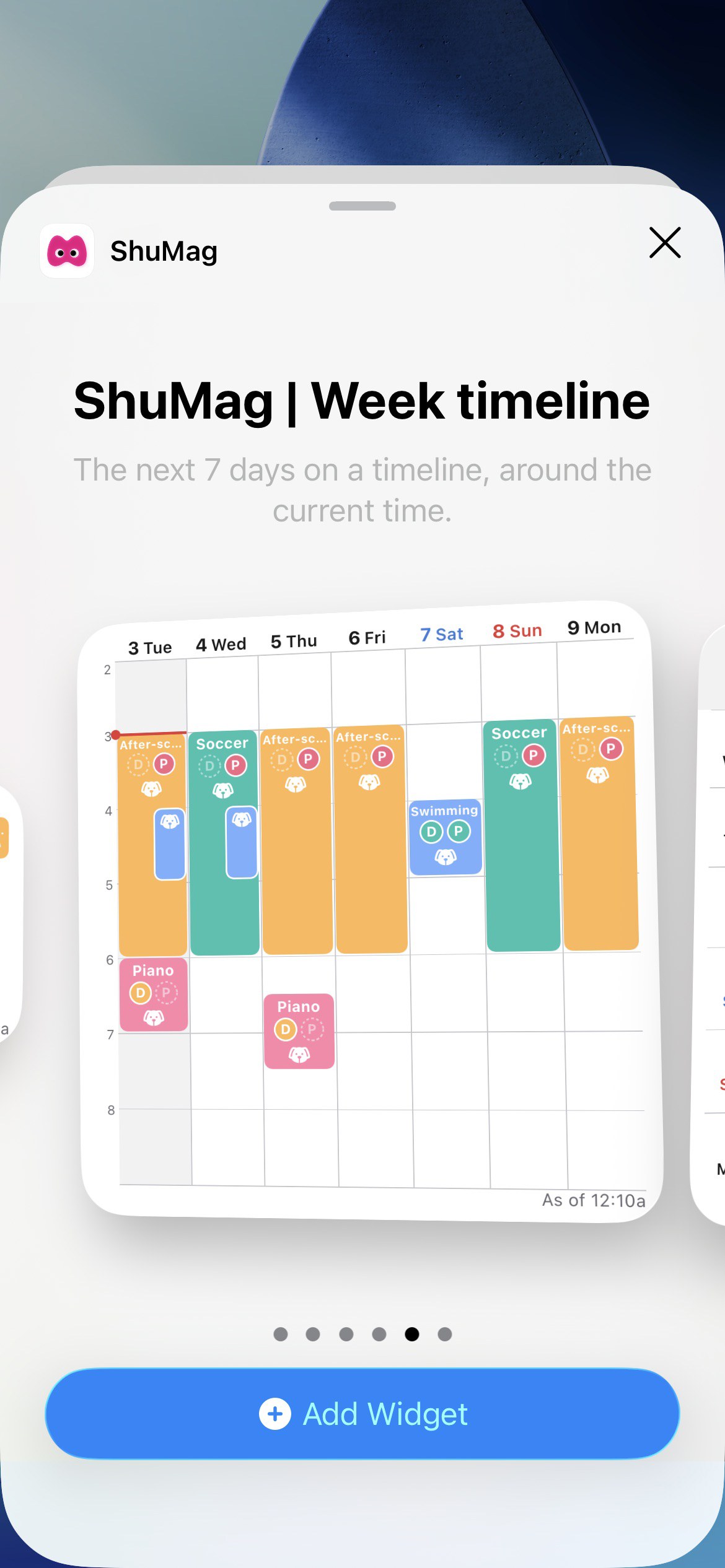
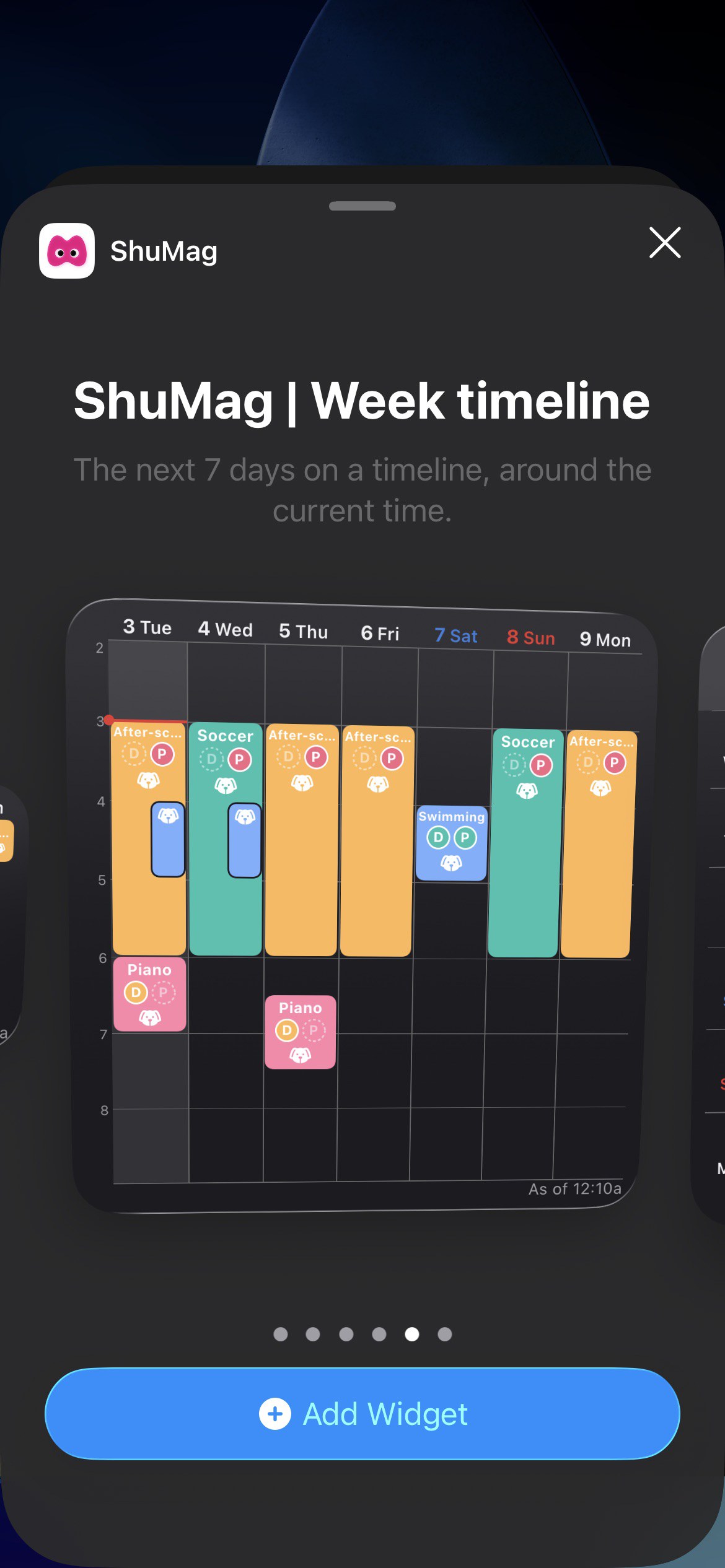
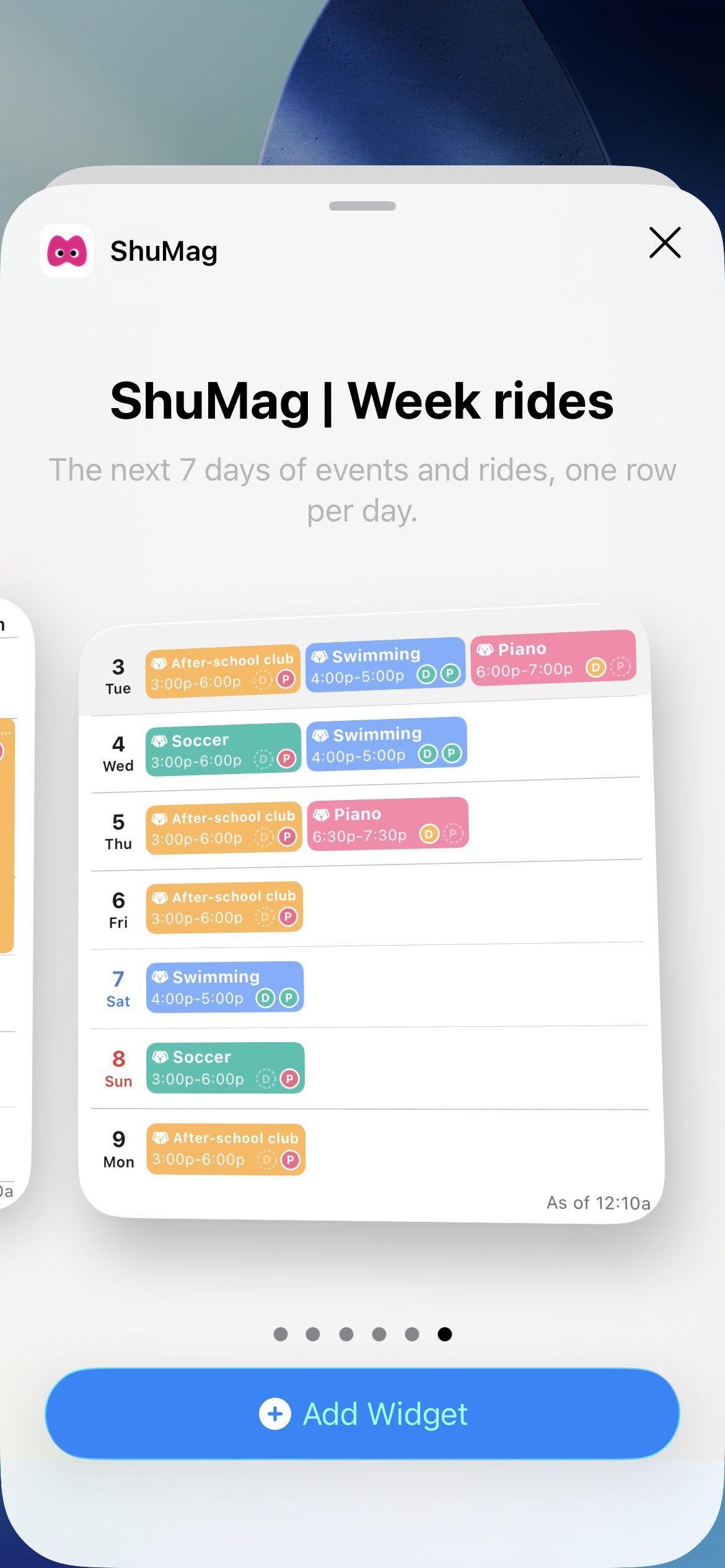
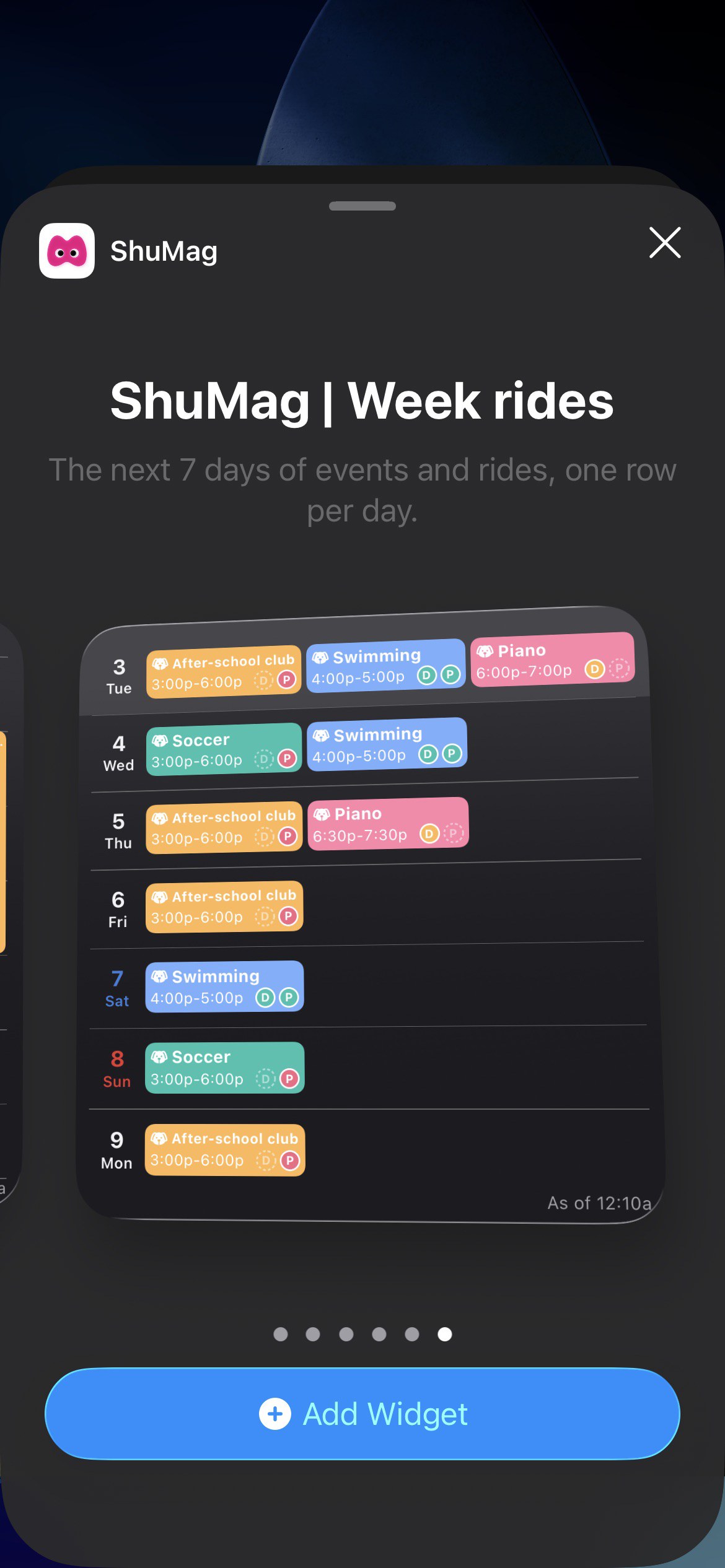
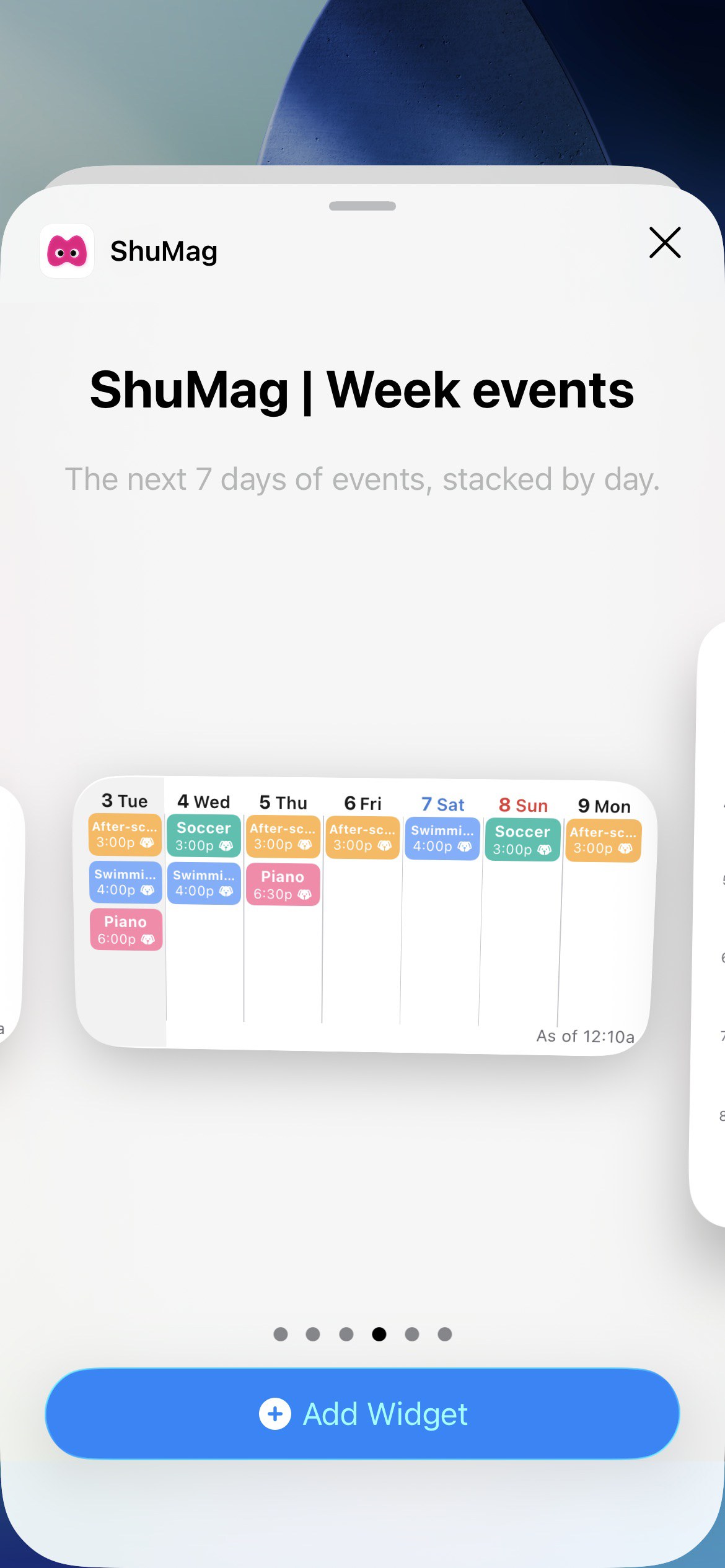
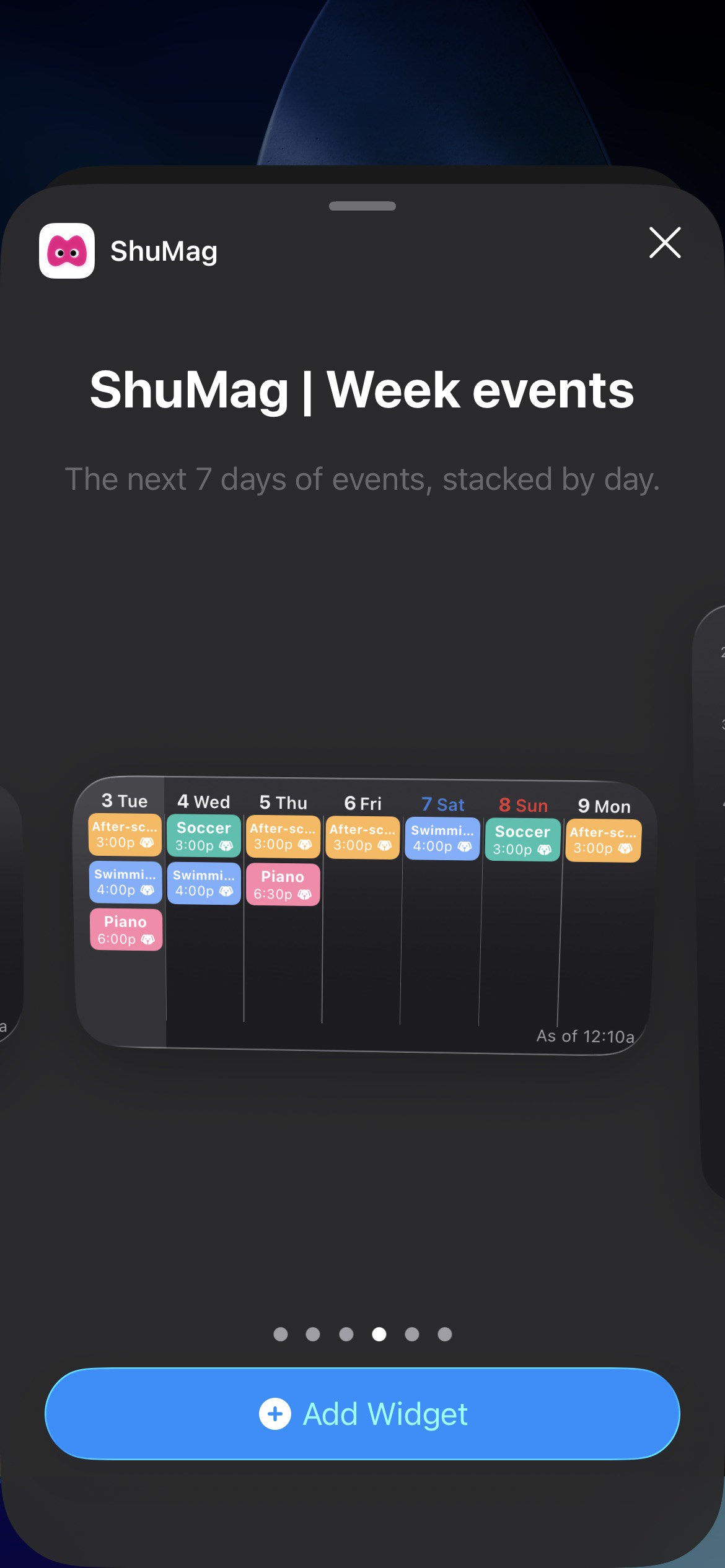
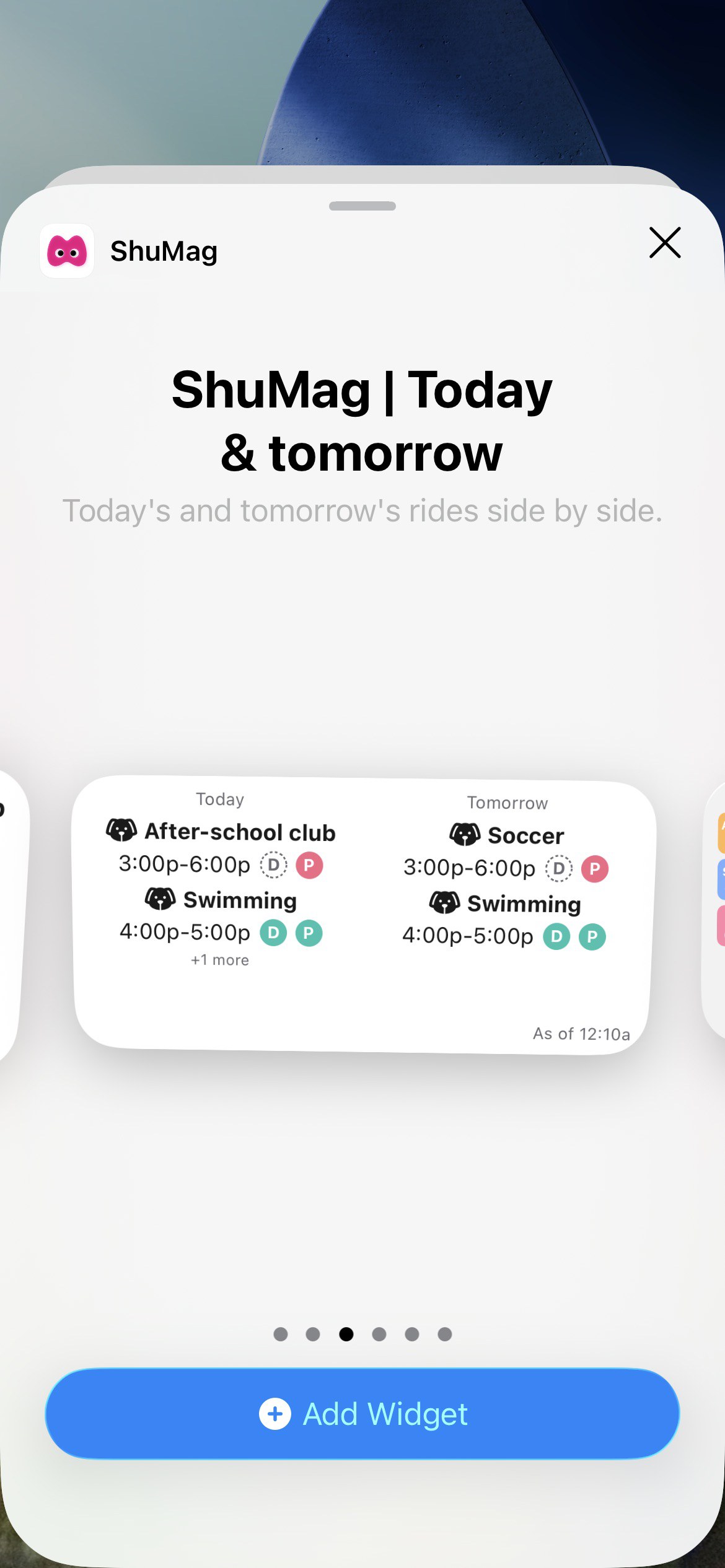
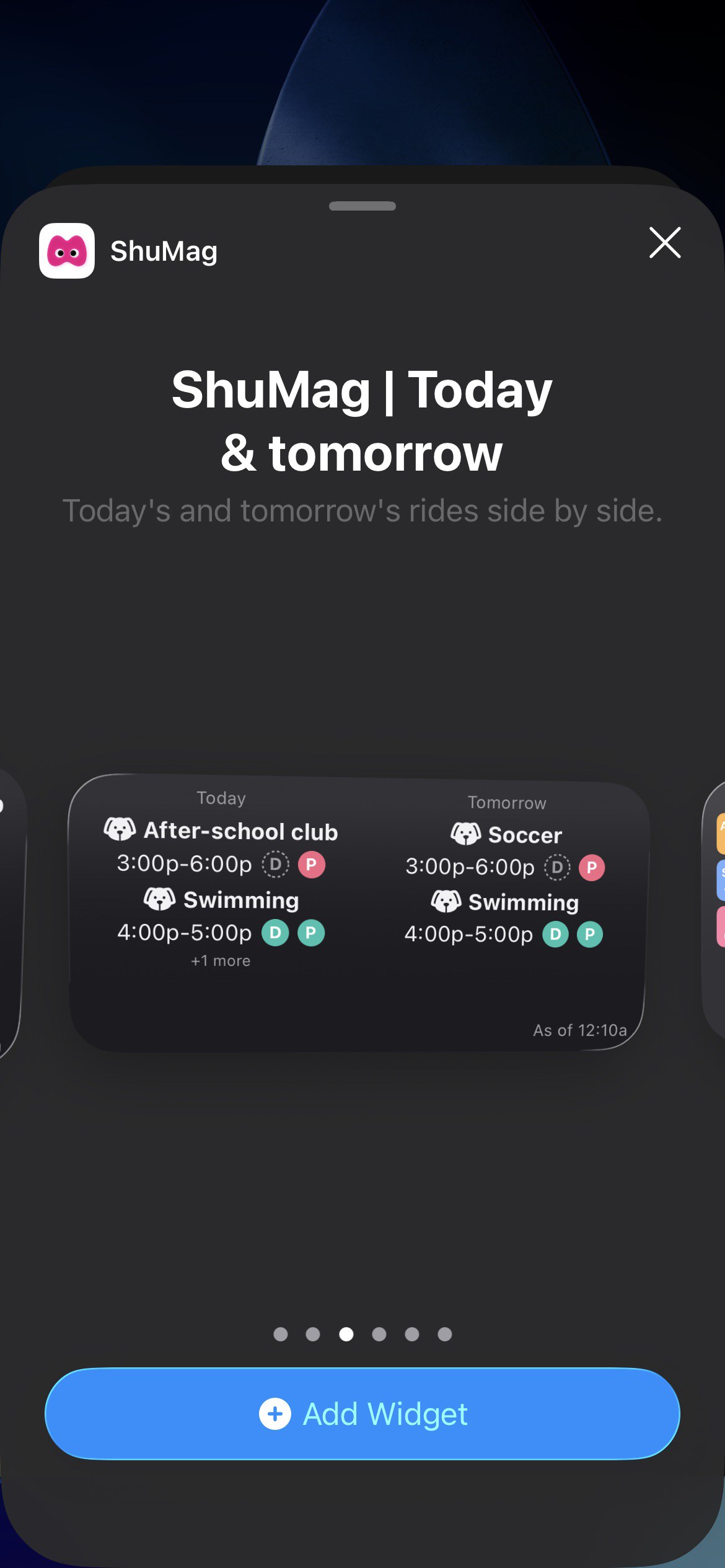
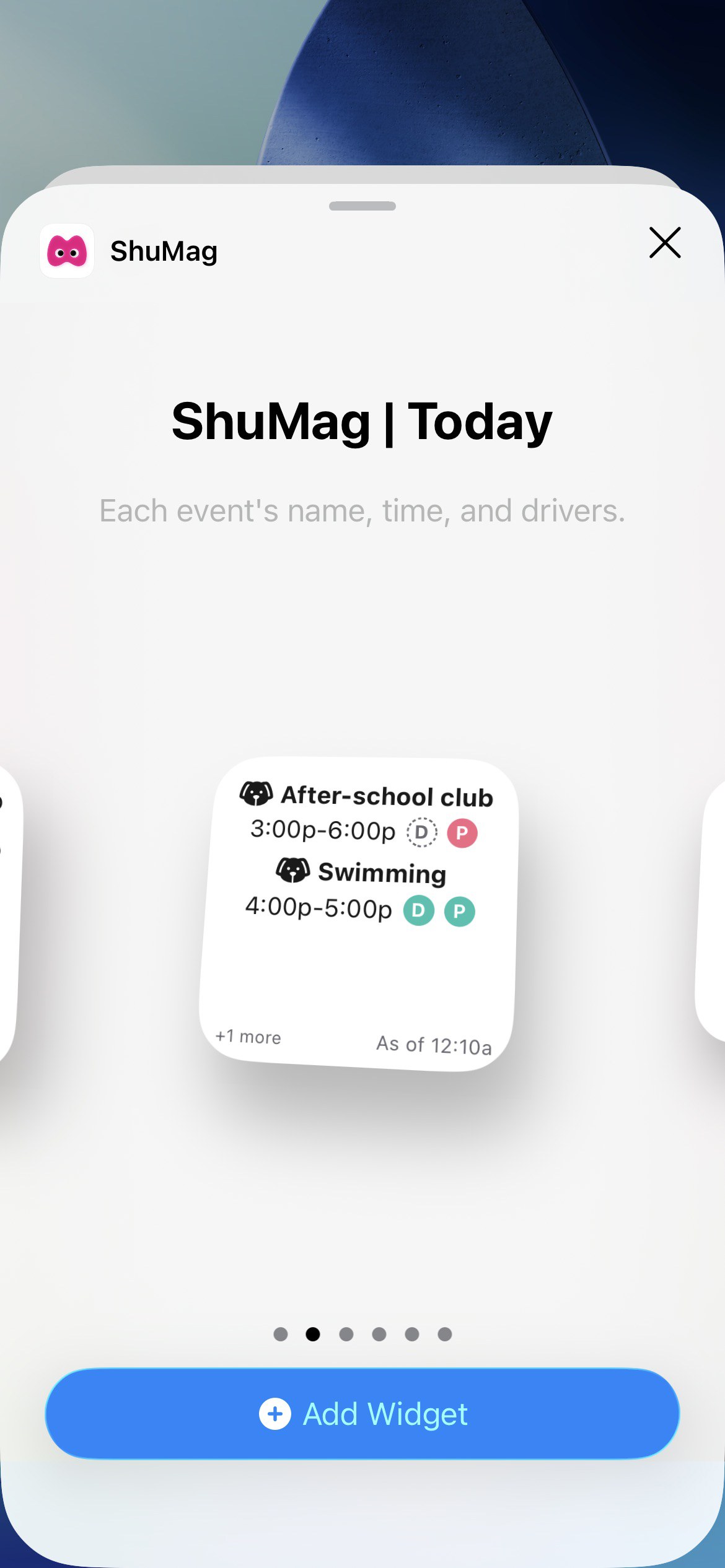
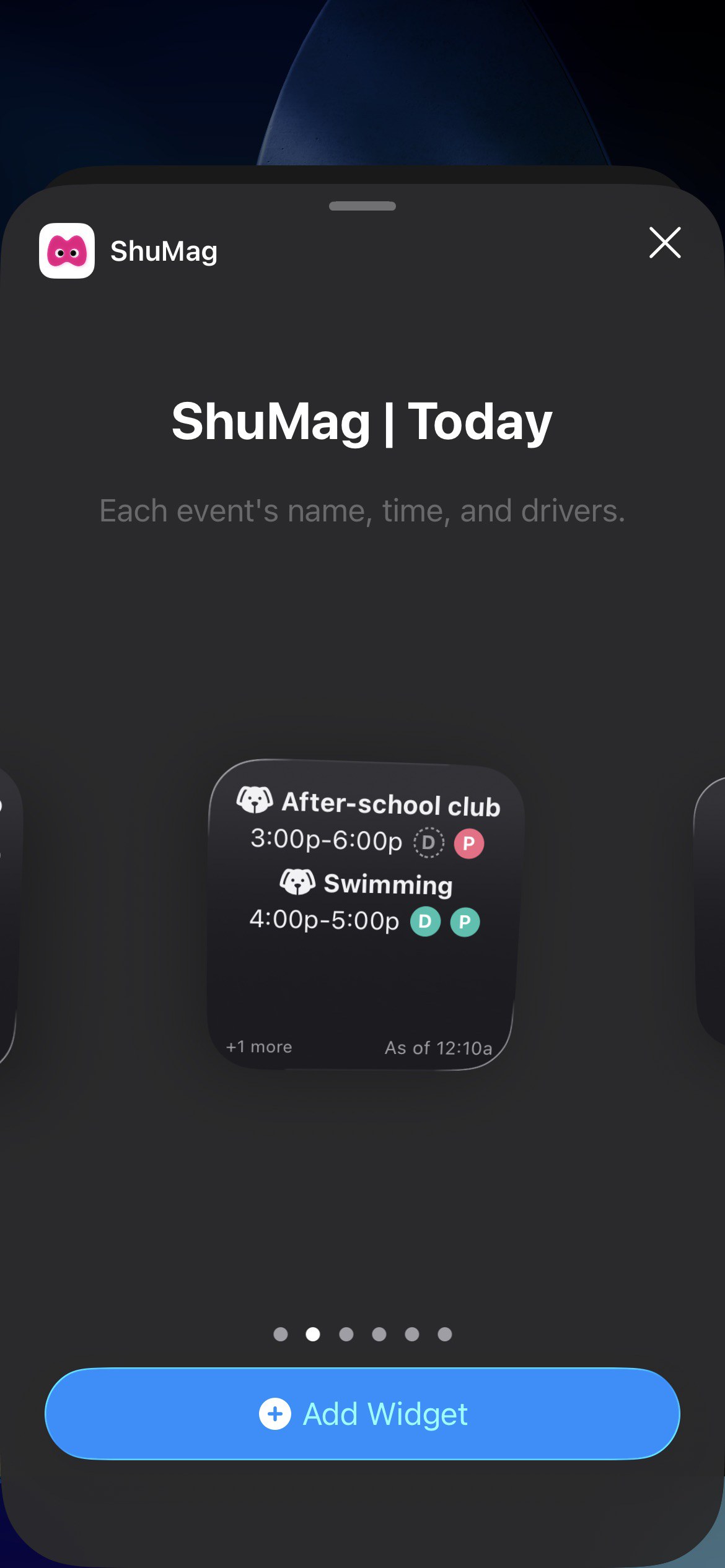
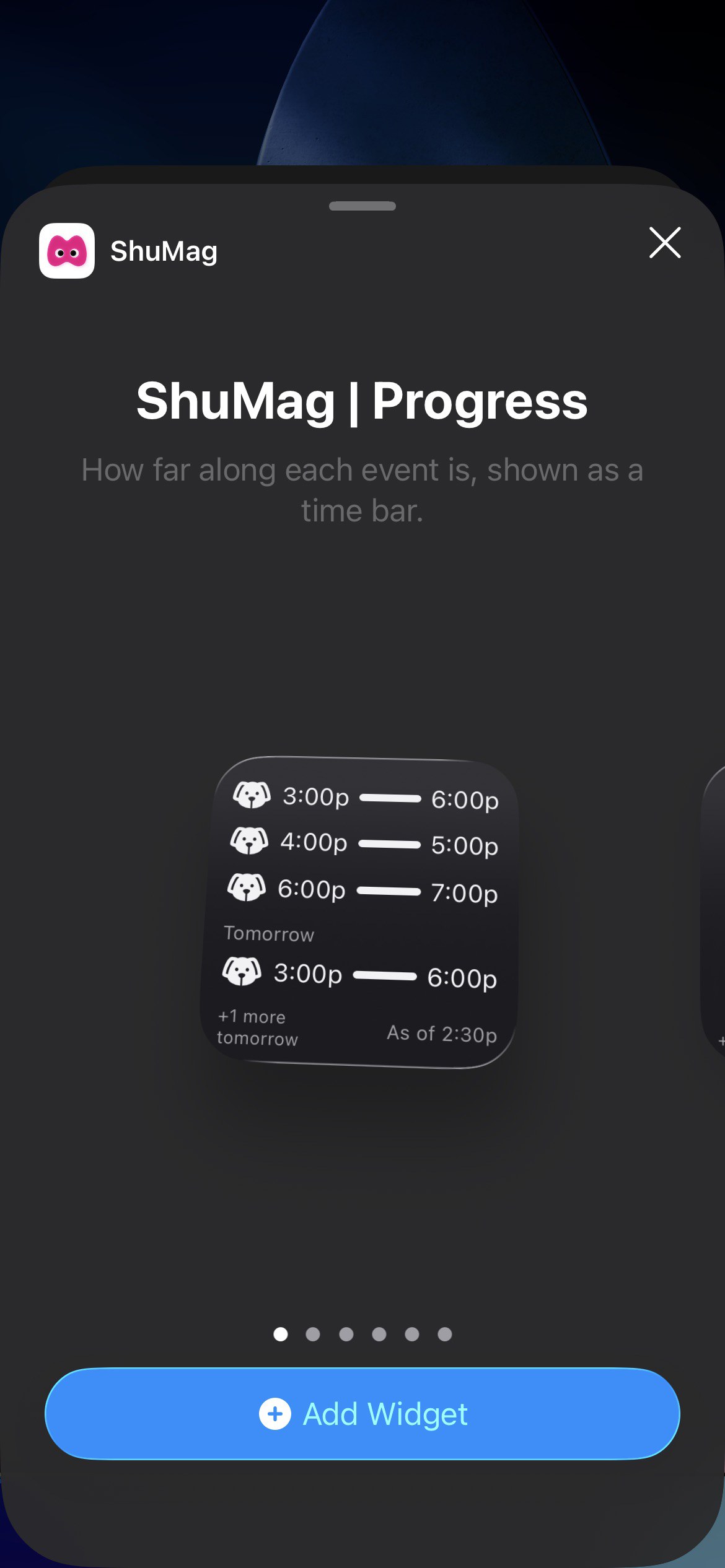
With widgets, your rides show up on the Home Screen and Lock Screen. You can see the next event and its drivers without opening the app. A large widget shows the next 7 days at a glance.

When someone in your family changes a plan, the widget updates on its own after a while. To see how current it is, check the bottom right of a Home Screen widget.

You can filter by kid or driver, so showing only the rides you drive is a handy option.

Widgets work on iPhone and iPad with iOS 17 or later.

Adding the "Week timeline" widget (light mode)
Adding the "Week timeline" widget (dark mode)
Adding the "Week rides" widget (light mode)
Adding the "Week rides" widget (dark mode)
Adding the "Week events" widget (light mode)
Adding the "Week events" widget (dark mode)
Adding the "Today & tomorrow" widget (light mode)
Adding the "Today & tomorrow" widget (dark mode)
Adding the "Today" widget (light mode)
Adding the "Today" widget (dark mode)
Adding the "Progress" widget (light mode)
Adding the "Progress" widget (dark mode)
MORE

More handy features

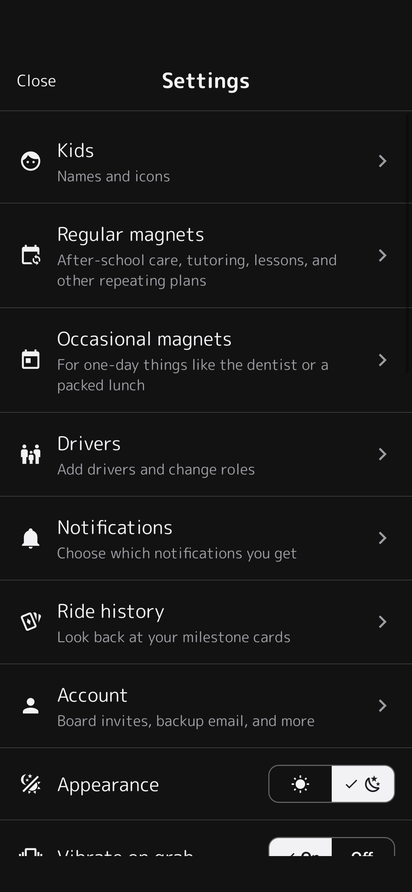
Dark modesupported
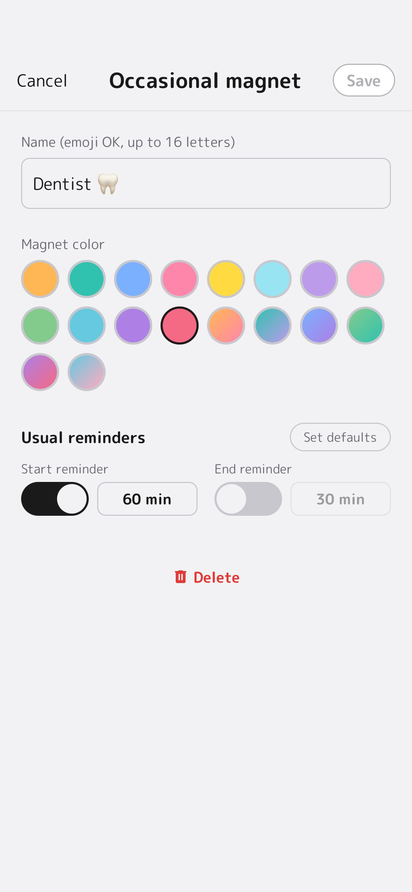
Occasional magnetsfor one-off plans
Color presetsto choose from
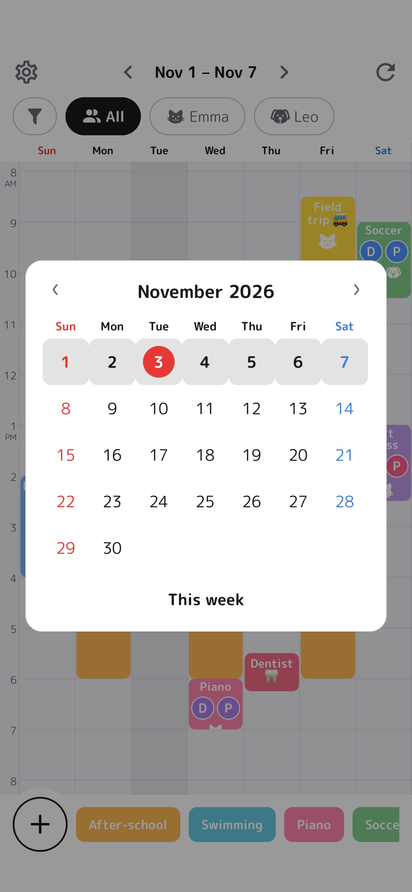
Month calendarto jump to a week
Easy transferwhen you get a new phone
Plans until 10 PMfor evenings, too
Settings screen in dark mode
Making an Occasional magnet
Regular magnet settings screen
Picking a week from the month calendar
HOW TO USE

Get started in 4 steps.

It can take as little as a minute. No tricky setup.

1
Name your board
Make a board for your family.
2
Add your kids
Just pick a name and an icon. You can edit or add more later.
3
Set up your regular schedule
Add plans that repeat, like after-school care or lessons.
4
Place magnets and invite your family
Place your magnets and send an invite code, and you’re all set.

Invited family members just enter the code.
They don’t need to add kids or magnets.

For more details, see Help.
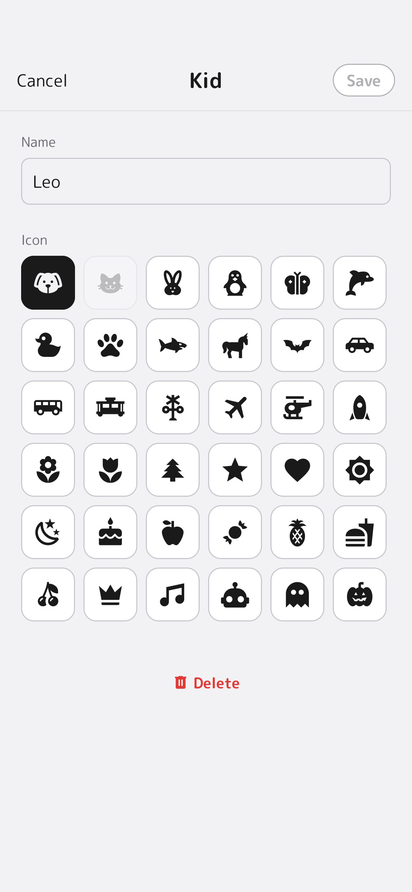
Adding a kid
Regular magnet settings screen
Creating an invite code
SCENES

Handy for families like these

Juggling activities
After-school care, swimming, tutoring, youth sports. The more places there are, the more it helps to have them all in one spot.
Sharing the driving
Dad, Mom, Grandpa, Grandma. No more “Wait, who’s picking up today?”
With family who live apart
Share the same board with grandparents or family who live somewhere else.
Pet and elder care rides, too
Grooming, the vet, adult day care. Plans that aren’t for kids fit on the same board, too.
Driver settings screen
ShuMag weekly board screen
PHOTO

Pin school handouts, too.

A Standard plan feature

Field trip info, packing lists, open house notices. Take a photo of the papers you used to stick on the fridge door, and attach it to that day’s magnet.

Everyone in the family can check the photos on their own phone, anytime. No more “Where did that handout go?”
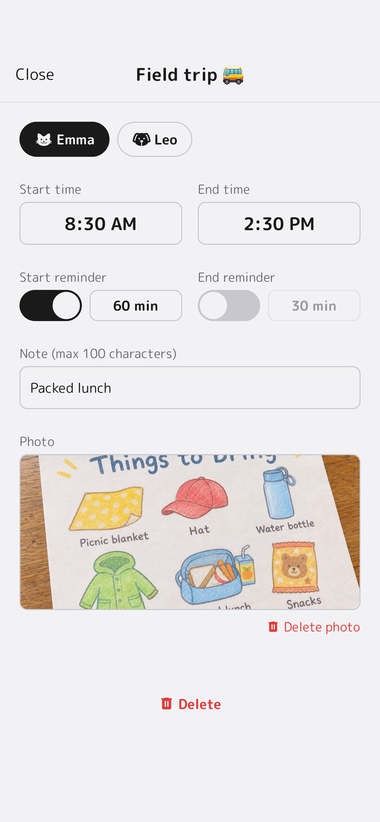
A field trip event with a note and a photo attached
Tap a photo to see it larger.
Photos show up in notifications, too.

Attaching photos is a feature of
the Standard and Family plans.
See Plans for details.

PRICE

Plans

Only the board owner subscribes.
Invited family members don’t pay anything.

Free
No charge
  • 1 kid, 2 Regular magnets, 3 Occasional magnets, 2 drivers
  • Share with 1 family member (view only)
  • See 2 weeks back through the week after next
First month free
Standard
Monthly or yearly
  • Unlimited kids, Regular magnets, Occasional magnets, and drivers
  • Share with 1 family member (can edit)
  • Attach photos to event notes
  • Look back 13 months and plan as far ahead as you like
Lifetime, yours to use forever
One-time payment
Family
Monthly or yearly
  • Everything in Standard
  • Up to 10 people: share and edit with grandparents and more
If you have Lifetime
Add it monthly, only when you need it
*Lifetime is for the Standard plan only

Prices are shown in the App Store and vary by country.

FAQ

Common questions

Q.How do I share with my family?

Just send a 6-character invite code. They enter the code to join. When you invite someone, you choose viewer (view only) or editor (can edit, too).

Q.Do invited family members have to pay?

No. Only the board owner subscribes. Invited family members use the plan’s features with you for free.

Q.Can I add photos of school handouts and newsletters?

Yes. You can attach a photo to an event’s note. This is a Standard and Family plan feature, and it isn’t available on the Free plan.

Q.Will my data move to a new phone?

If you add a backup email, you can restore your board as it was on your new device.

Q.Can I use it on Android or a computer?

Right now, ShuMag is available for iPhone.

For more details, see Help.

From fridge to phone.

Start for free Download on the App Store

Start for free